Paper Leaves Bundle
Creating intricate paper crafts, seasonal decorations, or personalized gifts often hinges on the quality of your digital assets. If you are looking to elevate your crafting projects with realistic botanical elements, the Paper Leaves Bundle is a resource that demands careful attention. While the promise of beautiful designs is appealing, the difference between a frustrating experience and a seamless creative flow lies in understanding exactly what you are purchasing and how to handle the files correctly. Many creators rush into buying bundles without verifying file compatibility or extraction methods, leading to wasted time and money.
This guide aims to clarify the specifics of this bundle, helping you avoid common pitfalls associated with digital design assets. By understanding the technical nuances of SVG, DXF, EPS, and PNG formats, you can ensure that your cutting machines and software interpret the designs as intended. Whether you are a seasoned pro using Adobe Illustrator or a beginner just starting with Cricut Design Space, knowing what to expect is crucial for success.
What Exactly Are You Getting?
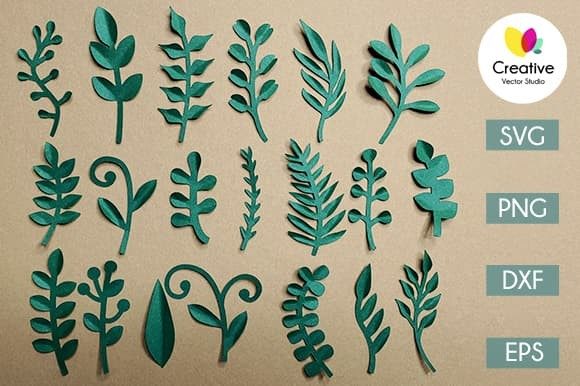
When you purchase the Paper Leaves Bundle, you are not receiving physical items or pre-cut materials. It is essential to manage expectations right from the start. The package contains a single ZIP file that serves as the container for all your digital assets. Inside this archive, you will find a comprehensive collection designed to work across various platforms and skill levels.
The contents include:
- 21 SVG files: These are vector-based cut files ideal for vinyl, cardstock, and other craft materials.
- 20 PNG images: High-resolution raster graphics featuring transparent backgrounds at 300 dpi.
- 1 EPS file: A vector format compatible with professional design software.
- 1 DXF file: A drawing exchange format useful for specific cutting software.
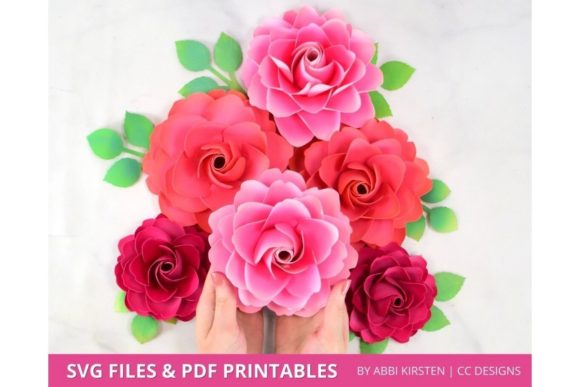
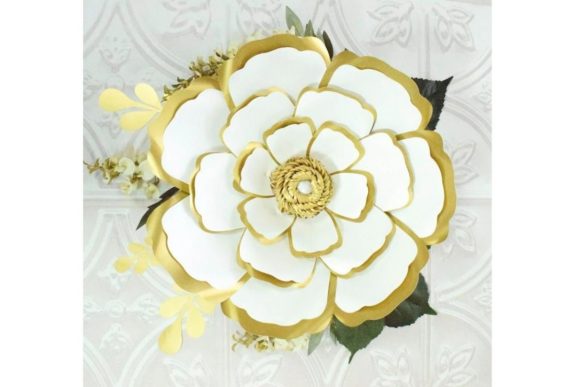
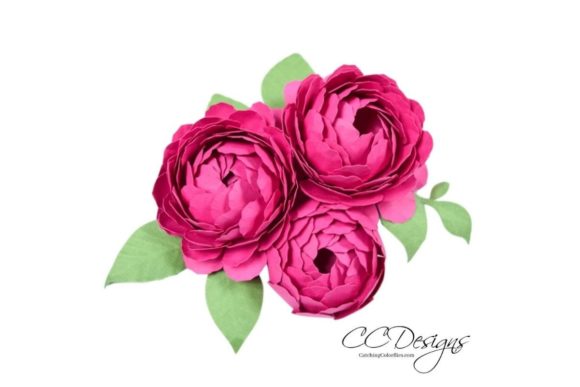
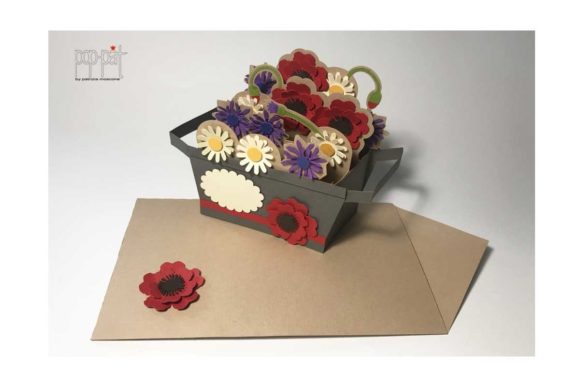
It is vital to note that the photographs displayed in product listings are merely examples of potential outcomes. You will receive only the raw digital files—clean, without watermarks, backgrounds, or example photos. This distinction is important because it means you have the freedom to create your own unique presentations without being limited by the creator’s styling choices.
The Critical Step: Extracting Your Files
One of the most frequent mistakes new users make is attempting to open the ZIP file directly within cutting software or design programs. Most editing applications cannot read compressed archives natively. If you try to import the ZIP file directly into Cricut Design Space or Silhouette Studio, the software will likely fail to recognize the data, resulting in errors or blank canvases.
To avoid this frustration, you must extract the contents first. On Windows, right-click the ZIP file and select "Extract All." On macOS, simply double-click the file to unzip it automatically. Once extracted, you will see individual files inside the folder. Only then should you proceed to upload them to your preferred software. Skipping this step is a primary reason why many buyers report issues upon download, when the problem is actually procedural rather than technical.
Understanding File Formats and Software Compatibility
Different file formats serve different purposes. Choosing the wrong format for your task can lead to poor print quality, inability to cut, or unnecessary complexity. Here is a breakdown of how to use each component of the Paper Leaves Bundle effectively.
SVG Files for Cutting Machines
The 21 SVG files included in the bundle are optimized for use with popular electronic cutting machines. They are fully compatible with Cricut Design Space, Silhouette Designer Edition, and Brother ScanNCut software. SVG (Scalable Vector Graphics) files are resolution-independent, meaning you can resize them infinitely without losing quality. This makes them perfect for creating everything from small stickers to large wall decals. Ensure your machine’s software is updated to the latest version to guarantee smooth integration of these vectors.
DXF for Basic Editing
If you are using Silhouette Basic Edition, which lacks full SVG support, the included DXF file is your best friend. DXF (Drawing Exchange Format) is an older but widely supported vector format. It allows basic shapes and lines to be imported and edited in simpler environments. However, complex layers or advanced effects present in the SVG might be simplified in a DXF conversion. Always check your design after importing a DXF to ensure no elements have been lost or distorted.
EPS for Professional Design
For graphic designers and illustrators working in Adobe Illustrator, CorelDRAW, or other vector graphics editors, the EPS (Encapsulated PostScript) file provides high-fidelity control. EPS files preserve complex paths, gradients, and typography better than some other formats. Use this if you plan to modify the leaf designs significantly, add custom text, or integrate them into larger marketing materials like brochures or logos.
PNG for Digital and Print Projects
The 20 PNG images are raster-graphics images, meaning they are made of pixels rather than vectors. However, they are provided at 300 dpi with a transparent background. This high resolution ensures they look crisp when printed on standard home printers or used in digital designs like social media posts, e-books, or web banners. Because the background is transparent, you can layer the leaves over any color or image without dealing with unsightly white boxes around your design. Keep in mind that unlike SVGs, PNGs cannot be resized beyond their original dimensions without becoming pixelated or blurry.
Avoiding Common Misunderstandings
Beyond technical setup, there are conceptual misunderstandings that can affect your satisfaction with the Paper Leaves Bundle. First, remember that these are digital downloads. There is no shipping delay, but also no physical item to inspect before use. Second, do not assume that one size fits all. Just because a leaf looks perfect in a thumbnail does not mean it will scale well for a giant banner. Always test-scale your designs in your software before committing to expensive materials like gold foil vinyl or specialty cardstock.
Another common error is ignoring the license terms. While not explicitly detailed here, most digital craft bundles allow for personal use and sometimes limited commercial use. Always verify the specific licensing agreement provided with your purchase. Using the designs for mass-produced merchandise without proper rights can lead to legal issues. For hobbyists making gifts for family, you are generally safe, but entrepreneurs selling handmade goods on Etsy or at markets should double-check commercial permissions.
Best Practices for Quality Results
To get the most out of your Paper Leaves Bundle, adopt a workflow that prioritizes preparation. Start by organizing your extracted files into folders labeled by format (e.g., "SVG_Cuts," "PNG_Digital"). This prevents confusion later when you need to switch between cutting and digital design tasks. When working with the SVG files in cutting software, always "weld" or "union" overlapping parts if necessary to prevent the machine from cutting through internal details unnecessarily. Conversely, if you want to create negative space effects, ensure the layers are separated correctly.
For the PNG files, ensure your design canvas matches the intended output size. If you are printing on A4 paper, set your document to A4 dimensions. Uploading a 300 dpi PNG to a project meant for a 5x7 inch card is fine, but trying to stretch it to fit a billboard will result in a muddy, low-quality image. Respect the resolution limits of raster graphics.
Final Thoughts on Making the Right Choice
The Paper Leaves Bundle offers a versatile toolkit for anyone interested in botanical-themed crafts. Its strength lies in its multi-format approach, catering to both simple cutting projects and complex graphic design workflows. By extracting your files properly, choosing the right format for your software, and respecting the limitations of each file type, you can avoid the headaches that plague so many digital crafters. Take the time to explore the 21 SVGs and 20 PNGs individually. Experiment with colors and scales. The quality of your final project depends less on the file itself and more on how thoughtfully you prepare and execute your design.